Concentric text in Photoshop
One day you might just be insane enough to want to write concentric text in Photoshop. It is quite illegible and likely to give you a headache but if you still want to do it read on.
Creating the concentric line 
Please note this only works in Photoshop CS and above. If you are on an older version of Photoshop this technique won’t work.
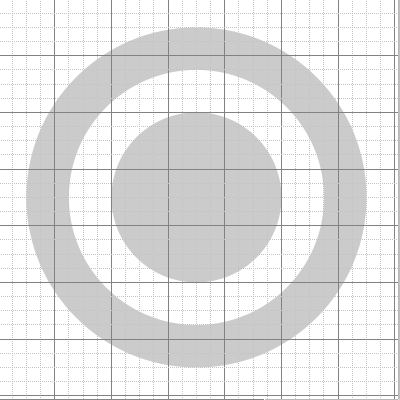
To create a line for the text to follow we need to create a path for it. This is where you will need to be handy with the pen tool but with a bit of practice it is straightforward. First turn on Gridlines by going to View > Show > Grid. Then select the Elipse Tool and draw three circles that you will use as a guide to draw with. Make sure they are evenly spaced. The grid comes in handy here as you can just click on a point, hold down shift and draw the circle.
Following the curve 
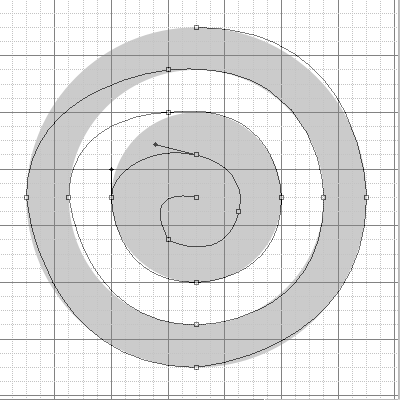
Then select the pen tool and in the options at the top make sure you have Path selected and not shape layers. Begin drawing your path and try to follow the edge of the circle as closely as possible. Don’t worry if it isn’t perfect as you can come back at the end and fix it. Personally I don’t like my line to be precisely perfect but that is up to you. Once you have completed the path you can use the Direct Selection tool and the Pen tool to move any points that you are not happy with, or even create new ones. Here’s what I ended up with.
Adding in the text 
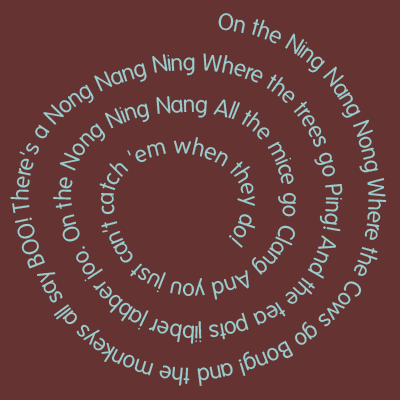
Make sure the path is selected and then select the text tool. Hover over the start of the Path and you will see the icon change. This means that the text will follow the route of the path you have chosen. Then click and begin typing. All of your text will have to be on one line and if the text is longer than the space available it won’t show. You can get round this by selecting all the text and then reducing the font size.
Tags
Can you help make this article better? You can edit it here and send me a pull request.
See Also
-
Creating custom shapes in Photoshop
A less well known feature of Photoshop is that you can create custom vector shapes and use them throughout your designs. Here's an of examples of how to do it. -
Using patterns in Photoshop
Patterns area hidden gem in Photoshop. Here's a short tutorial showing you how to make your own and how to use them in your designs. -
Making promotional graphics
A well designed promotional graphic can be a great way to drive traffic through your site. Here's one way to do it.